 Doc Summary

Discover how Aiphilia’s Nested Layouts empower you to build advanced, responsive page designs with ease. This innovative feature streamlines the creation of multi-column and adaptive layouts directly in the Funnel and Website Builder, saving you time while enhancing design precision.
TABLE OF CONTENTS
- What are Nested Layouts?
- Key Benefits of Nested Layouts
- How To Set Up Nested Layouts in the Builder
- Examples of What You Can Build Now
- Frequently Asked Questions
- Related Articles
What are Nested Layouts? #
Nested Layouts allow you to place layout containers within other layout containers, giving you precise control over how elements are structured on a page. This structure enables you to easily manage multi-column designs, adaptive spacing, and responsive sections with enhanced visual control.
Whether you’re creating opt-in pages, comparison tables, or product showcases, Nested Layouts simplify the process while enhancing visual consistency and alignment.
Key Benefits of Nested Layouts #
Nested Layouts eliminate complexity and add power to your page design toolkit:
- Flexible Structure: Easily place rows, columns, and other layouts within one another.
- Real-Time Settings: Instantly change layout direction (row, column, collage) with live previews.
- Precise Spacing Tools: Set margins, padding, and alignment exactly how you want—at every level.
- No More Workarounds: Design complex pages without custom CSS or third-party solutions.
- Reusable Layouts: Save time by duplicating and modifying nested containers for consistent branding.
How To Set Up Nested Layouts in the Builder #
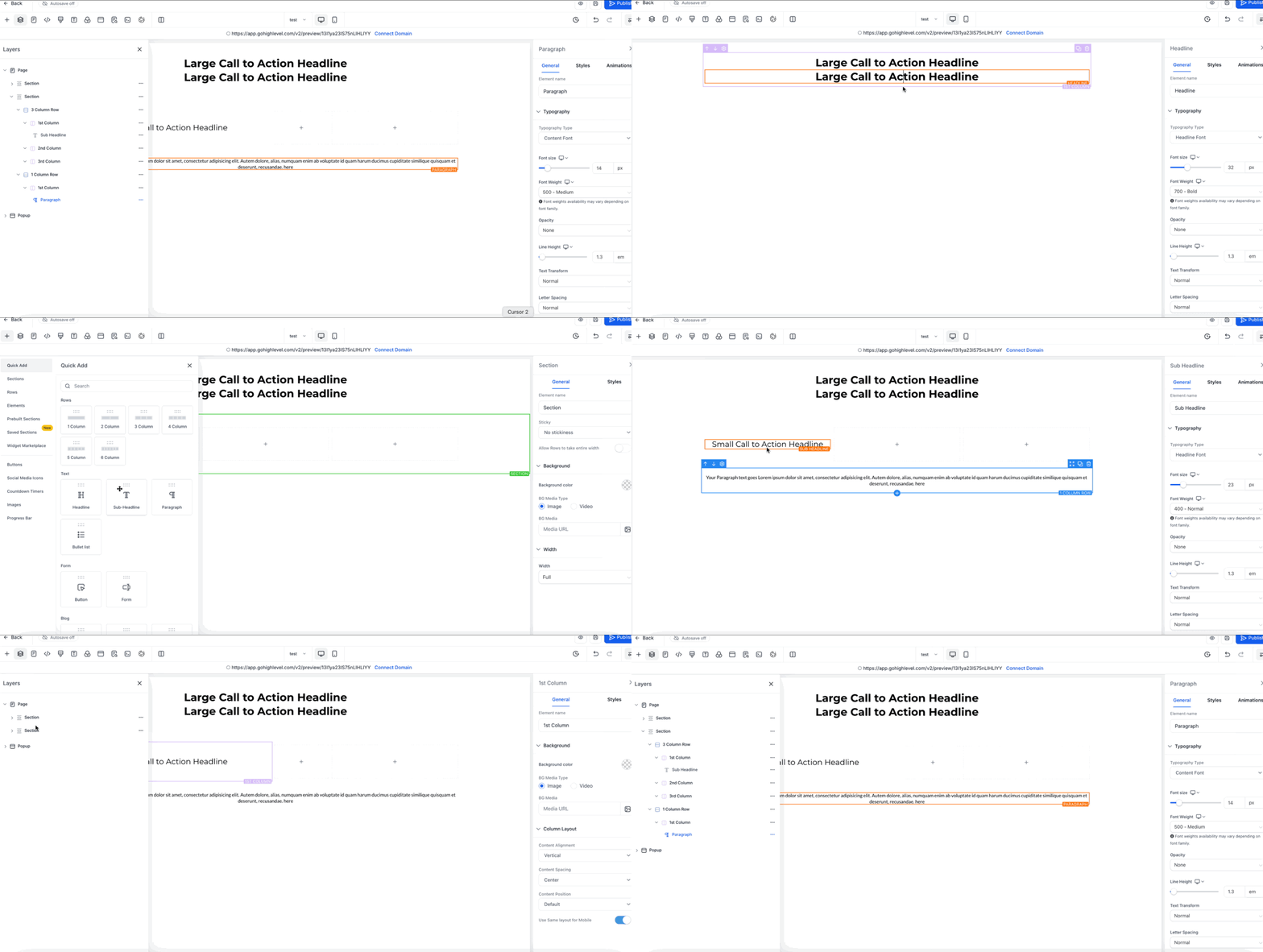
Nested Layouts are easy to implement using the Funnel or Website Builder’s drag-and-drop interface. Here’s how to get started:
- Log in to your subaccount and open your desired Funnel or Website.
- Drag a Layout Container onto the canvas.
- Drag a second Layout Container into the first to form the nested structure.
- Open Layout Settings and choose row, column, or collage orientation.
- Adjust Spacing & Alignment for margins, padding, and positioning. Repeat steps 3–5 for additional nested levels as needed.
- Click Save to commit your layout or add it to Saved Sections for reuse.
Examples of What You Can Build Now #
- Two-column opt-in pages: Put your headline and form on one side, testimonials and social proof on the other.
- Pricing comparison tables: Create multi-column layouts with different sized sections for features, pricing, and call-to-action buttons.
- Feature showcase grids: Build complex layouts with images, text, and buttons that align perfectly across rows and columns.
Frequently Asked Questions #
Q: How do I add a nested container?
Drag a Layout Container into an existing Layout Container—the blue highlight shows a valid drop zone.
Q: Can I nest Sections or Rows?
No. Only Layout Containers can be nested. Sections and Rows remain single‑level for performance reasons.
Q: Is there a depth limit?
Practically no, but we recommend three to four levels for maintainability and load speed.
Q: Do Nested Layouts work in Saved Sections and Funnels?
Yes. Saved Sections keep their nested structure and sync globally when updated.
Related Articles #
- Sites Overview
- Nested URL Paths Support for Websites, Funnels, Ecomm & Webinars
- A Quick Walkthrough of SEO: A Guide to Boosting Your Search Rankings
- Funnels & Websites | Creating Categories in the Navigation Menu
- Audit Logs in Funnels, Websites, Webinars & Stores
- FAQs, Basic Troubleshooting – Funnels, Websites, Webinars


