Table of Contents
 Doc Summary

A “default header” provides a fallback From Name and From Email for outbound messages sent via a dedicated sending domain when DMARC alignment fails. This ensures deliverability and brand consistency, even if a campaign’s custom header does not match the authenticated domain.
TABLE OF CONTENTS
- When to Use Default Headers
- Prerequisites
- Setting Default Headers (From Name & From Email)
- How Default Headers Work in Practice
- Best Practices & Considerations
- Common Troubleshooting Scenarios
When to Use Default Headers #
- Fallback for DMARC Failures: If a campaign’s “From” address does not align with your dedicated sending domain’s DKIM/SPF records, Aiphilia will automatically switch to the configured default header so that the message is still authenticated.
- Maintain Consistent Branding: Even if a typo or misconfiguration causes a non-aligned “From,” recipients will see your brand’s domain in the From field rather than a rejected address.
- Regulatory/Compliance Requirements: Industries requiring strict email authentication (finance, healthcare, etc.) should configure default headers to avoid DMARC rejections or quarantines.
Prerequisites #
Before you can configure default headers, ensure that:
- You’re in a Sub-Account
- Only sub-accounts can add and manage dedicated sending domains and set default headers. Agency-level domains do not support per-sub-account default headers.
- Only sub-accounts can add and manage dedicated sending domains and set default headers. Agency-level domains do not support per-sub-account default headers.
- Dedicated Sending Domain Is Added and Validated
- You have completed DNS setup (CNAME, DKIM, and SPF) for your custom sending domain (e.g.,
email.yourbrand.com). - Aiphilia displays a green checkmark indicating your domain is validated under Settings → Email Service → SMTP Service → Dedicated Domain and IP
- You have completed DNS setup (CNAME, DKIM, and SPF) for your custom sending domain (e.g.,
Setting Default Headers (From Name & From Email) #
You can set up default “From address and Email” for dedicated domains under your account only for the Sub-account created domains.
Navigate to Sub-account Settings – Email Service -> SMTP Service -> Dedicated Domain and IP -> Set headers under dedicated domain.
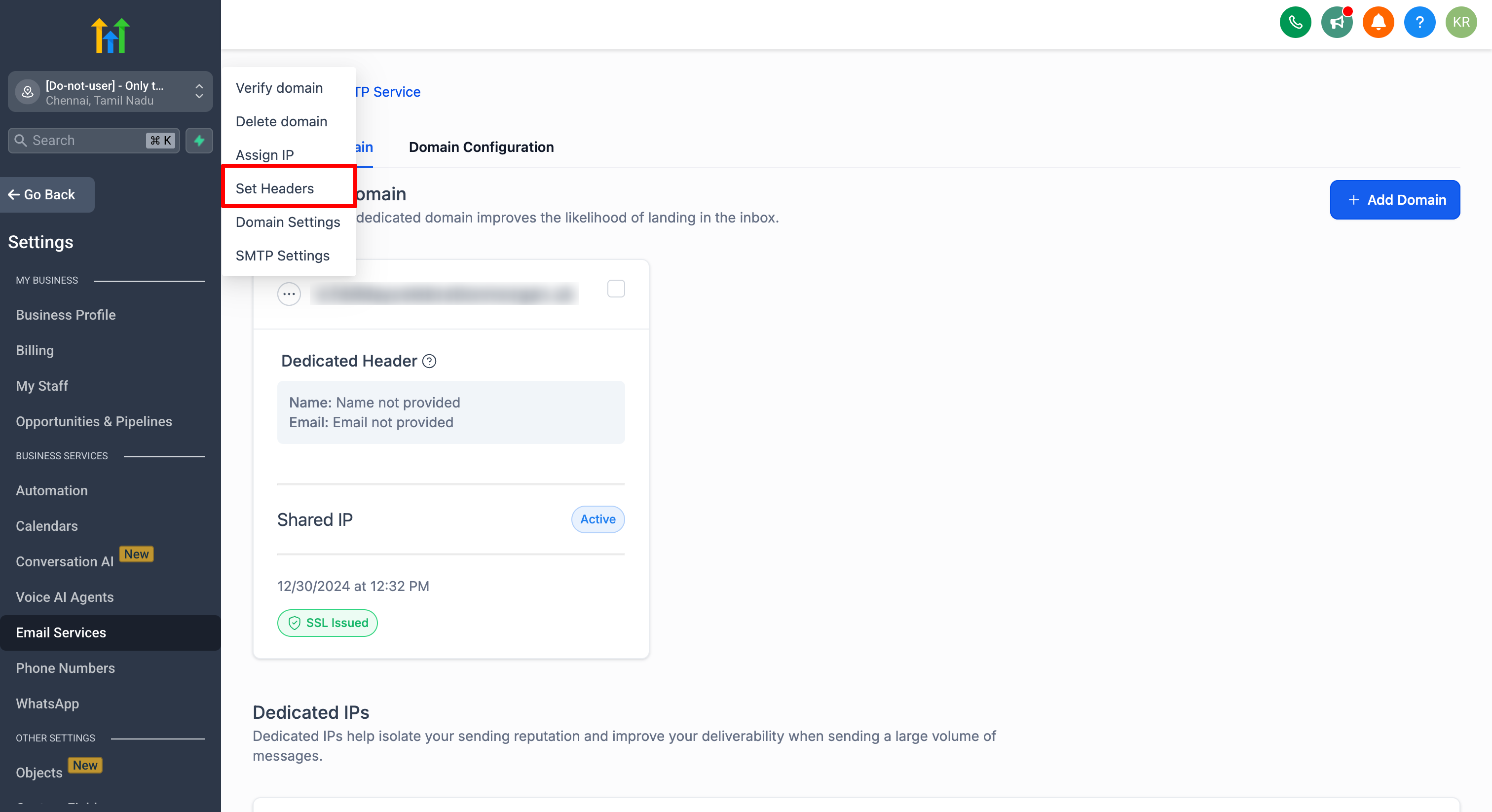
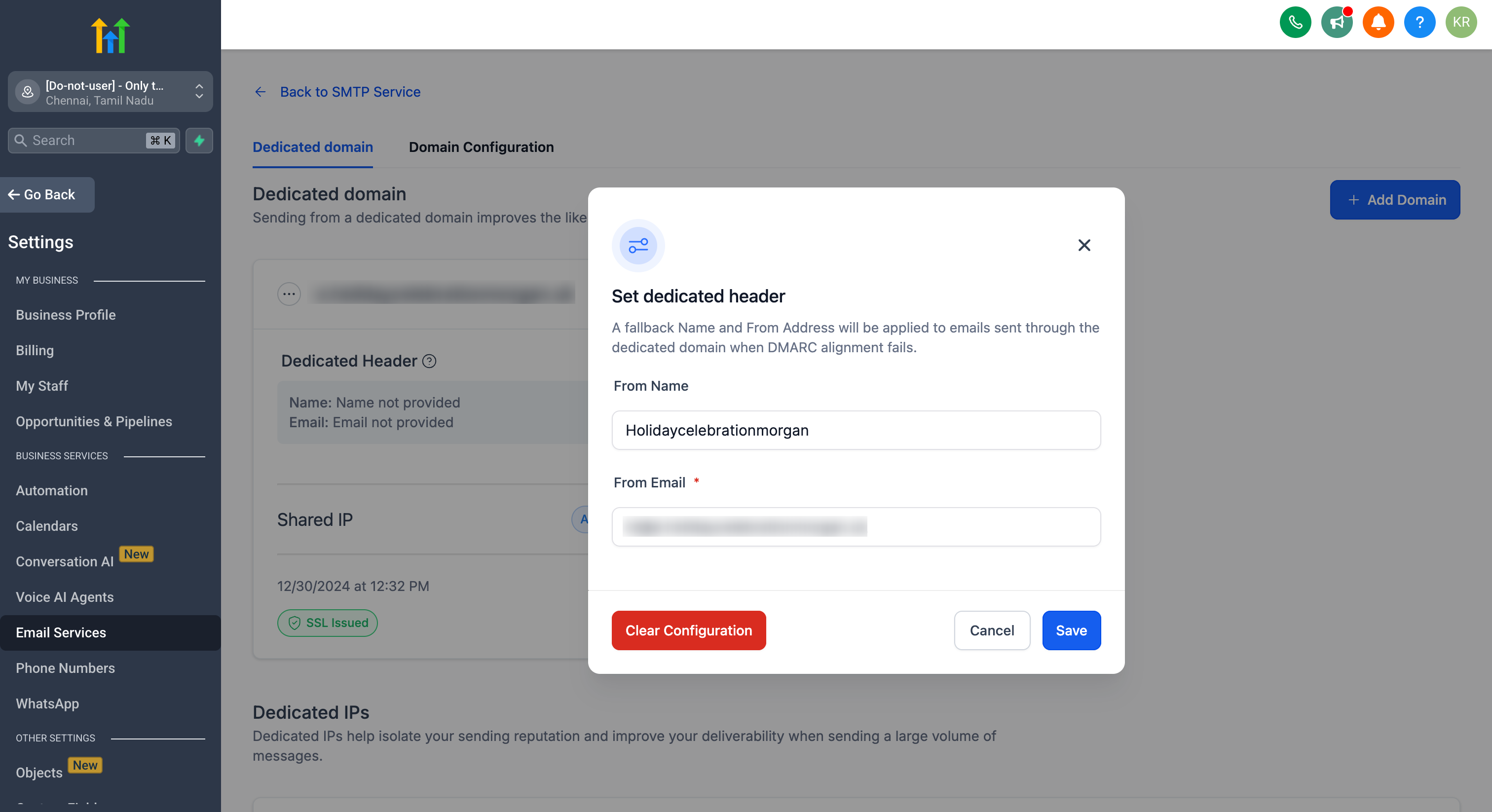
The designated header will be applied to emails sent through the dedicated domain when DMARC alignment fails.
How Default Headers Work in Practice #
- Campaign Configuration
- When creating a broadcast or workflow email, you can set a campaign-level “From Name” and “From Email.”
- If you intentionally use a different “From Email” (e.g.,
sales@differentdomain.com) that does not align with your dedicated domain (email.yourbrand.com), DMARC will fail.
- DMARC Check & Fallback
- At send time, Aiphilia checks DMARC alignment between the campaign’s “From” address and the sending domain’s DKIM/SPF records.
- If alignment passes: The email goes out with the campaign’s chosen “From.”
- If alignment fails: Aiphilia overrides the campaign’s “From” with the default header you configured under that dedicated domain.
- Recipient Experience
- Recipients see a valid “From Name” and “From Email” that matches your authenticated sending domain.
- The email remains DMARC-compliant and is less likely to be rejected or flagged as spam.
Best Practices & Considerations #
- Configure Default Headers Before Sending: Always set up your fallback header prior to launching major campaigns. If DNS or DMARC misconfiguration occurs, your default header will kick in automatically.
- Monitor Replies: The default “From Email” can be any address at your sending domain, but ensure mailboxes or aliases are monitored (e.g.,
support@yourbrand.comforwarding to the correct team). - Test Before Scaling: Send a small internal test using a non-aligned “From” address to confirm Aiphilia defaults properly. Check both inbox placement and DMARC status.
- Understand Propagation Delays: Changing DNS (especially DKIM/SPF/TXT records) can take up to 48 hours to fully propagate. Without default headers, messages sent during propagation may be rejected.
- Segregate by Sub-Account: If you manage multiple brands or departments, create separate sub-accounts—each with its own dedicated domain and default headers—for isolated control.
Common Troubleshooting Scenarios #
| Issue | Possible Cause | Resolution |
|---|---|---|
| “Set headers” option is not visible | You’re in an agency-level view or the domain is not validated under a sub-account. | Switch to the correct sub-account. Add/validate a dedicated domain in Settings → Email Service → SMTP Service → Dedicated Domain and IP. |
| Emails still failing to send after fallback | DNS records (DKIM/SPF) are incomplete or incorrectly formatted. | Double-check DNS entries for your sending domain. Use online DKIM/SPF validators. Wait for propagation. |
| Fallback header not applied when expected | Campaign “From” address aligns with the sending domain (even if unintended). | Verify the campaign’s “From Email” is genuinely non-aligned (e.g., domain mismatch). Check DMARC reports to confirm failures. |
| Recipients see the wrong “From Name” or “From Email” | The campaign or workflow may hard-code a display name that overrides expectations. | Edit the campaign/workflow “From Name” and “From Email.” Ensure fallback is correctly spelled and free of stray spaces. |
| SSL certificate not issued for the sending domain | Missing or incorrect CNAME/DNS records for domain validation. | In Settings → Dedicated Domain, click “Edit DNS Info” and follow the instructions exactly. Wait for propagation before retrying. |


