Table of Contents
 Doc Summary

TABLE OF CONTENTS
- What’s New?
- Note
- How to Use it
Business user’s can now have automatic taxes applied while checkout at Payment Links for end customers in USA
What’s New? #
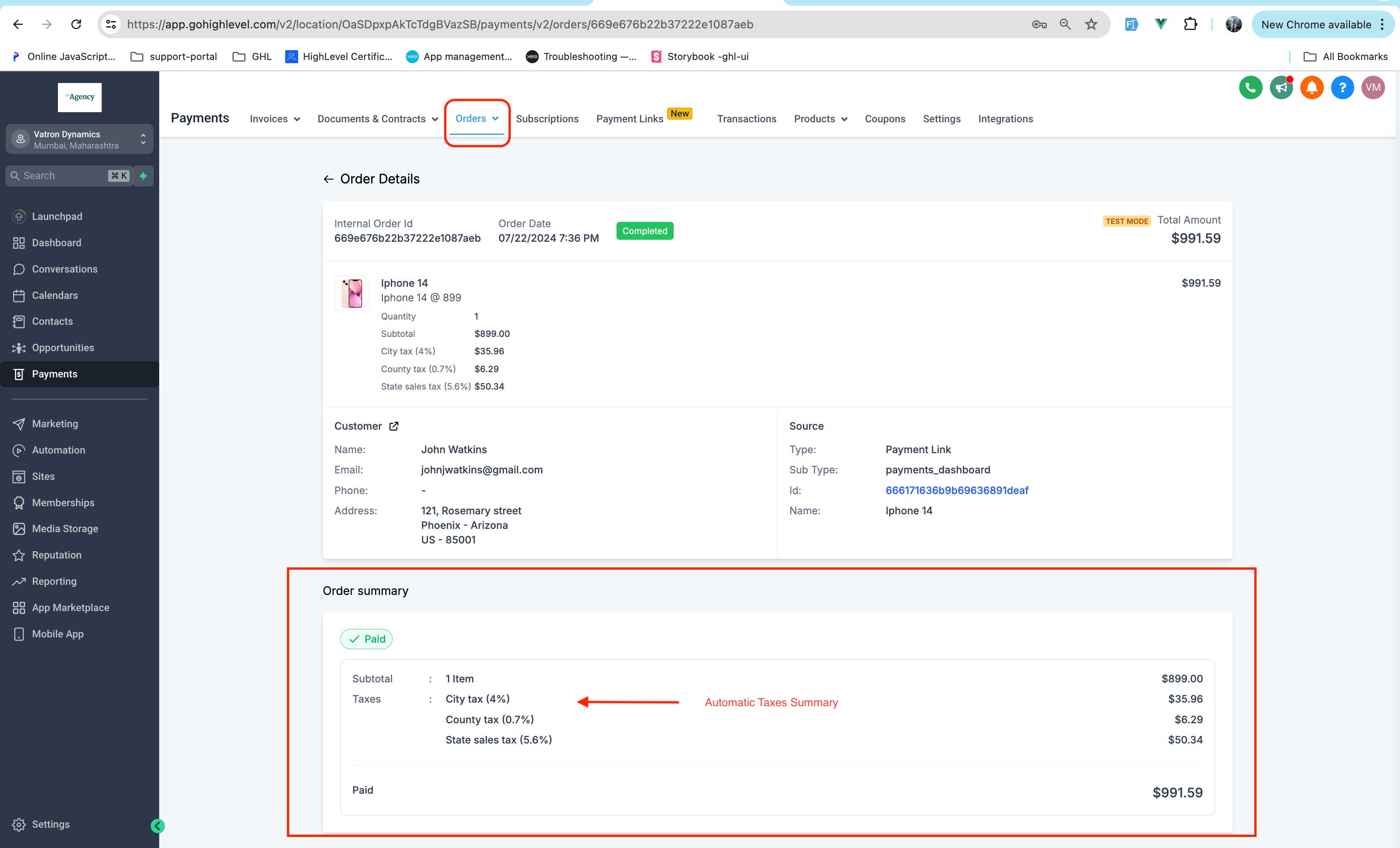
- Business users now have the capability to configure and apply automatic taxes on Payment Links
- If configured in the Settings inside Payments -> Taxes, at the time of checkout automatic taxes would be applied on product
- Automatic taxes would be applied to subsequent transactions also for recurring products
- The payment link must capture customer address in order for automatic taxes to reflect.
- The scope of this feature in Payment Links covers both -one time products, recurring products


Note #
- Automatic taxes are available only for customers entering in valid US Address.
- Automatic Taxes would also be applied to recurring products bought via Payment Links.
- Feature would be usable across already created payment links also !
How to Use it #
- Go to Payments -> Settings – > Taxes!
- Enable Automatic Taxes -> Enter in all the details reauired
- Go to any live Payment Link via preview or Copy Link Option -> Enter in US Address details and voila automatic taxes would be applied !


