Table of Contents
 Doc Summary

This comprehensive guide outlines the process for migrating from Mailchimp to Aiphilia, focusing on transferring email campaigns, contact lists, forms, and automation workflows. The objective is to ensure a smooth transition, leveraging Aiphilia’s comprehensive CRM and marketing automation capabilities.
TABLE OF CONTENTS
- Preparation for Migration
- Migrate Contacts, Campaigns and Automations
- Migrate Forms and Landing Pages
- Email Campaign and Automation Migration
- Setup Integrations
- Final Checks and Team Training
- Decommissioning Mailchimp
Preparation for Migration #
Step 1: Review Current Mailchimp Setup #
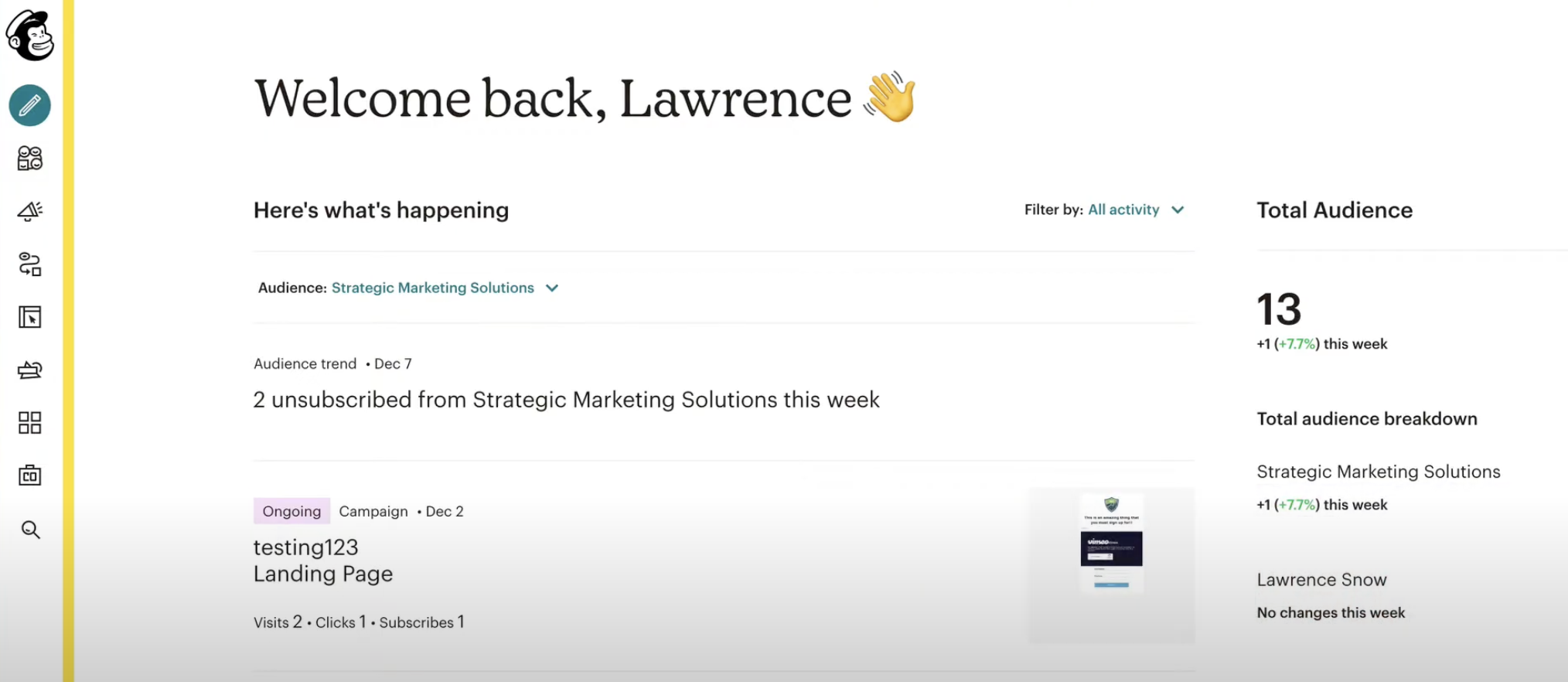
- Identify Key Assets: List all audiences, email campaigns, automation workflows, and forms that need to be migrated.
- Document Design and Content: Take screenshots or notes of the design, content, and settings of each email and form to replicate them in Aiphilia.
- Evaluate Data Volume: Assess the number of contacts and campaigns to be migrated.
Step 2: Define Migration Objectives #
- Set Clear Goals: Identify the reasons for migrating to Aiphilia, such as integrated CRM features, enhanced automation, or cost efficiency.
- Prioritize Critical Features: Focus on migrating the most critical features first to minimize disruptions.
Step 3: Prepare Backup #
- Export Data from Mailchimp: Export all relevant data, including contact lists, email campaigns, and automation workflows.
- Backup Data: Ensure all exported data is securely backed up before starting the migration process.
Migrate Contacts, Campaigns and Automations #
Step 1: Export Data from Mailchimp #
- Export Contacts: Navigate to Audience > All contacts in Mailchimp. Export your audience data by selecting the relevant contacts and downloading them as CSV files.
- Export Email Campaigns: Access Campaigns > All Campaigns and export any reusable content or HTML templates.
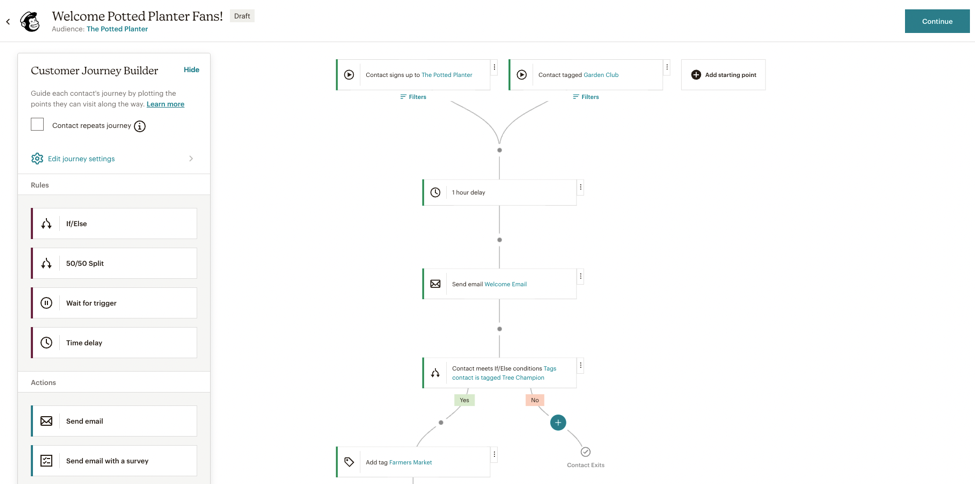
- Export Automations: Document the settings of existing automation workflows, including triggers, actions, and segments.
Step 2: Import Contacts into Aiphilia #
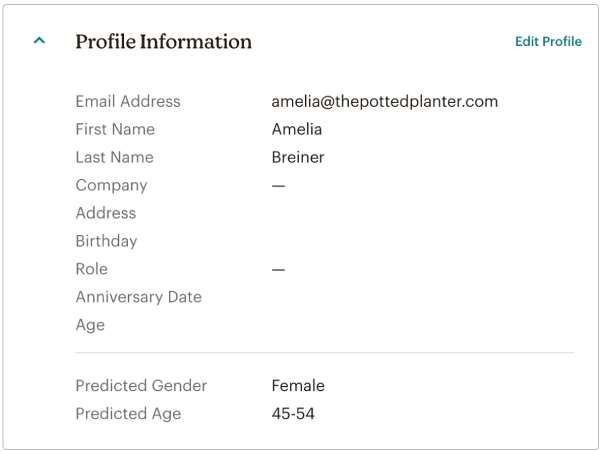
- Import Contacts: In Aiphilia, navigate to Contacts > Import Contacts and upload the CSV file(s) exported from Mailchimp.Map any custom fields to ensure that all data is correctly imported.
Migrate Forms and Landing Pages #
Step 1: Recreate Forms in Aiphilia #
- Rebuild Forms: Use Aiphilia’s Sites > Forms to recreate the forms from Mailchimp. Ensure that fields, validation rules, and submission actions match those used in Mailchimp.
- Embed Forms: Embed the recreated forms on your website or landing pages using the provided embed code.
Step 2: Recreate Landing Pages in Aiphilia #
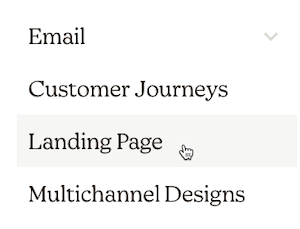
- Rebuild Landing Pages: Navigate to Sites > Funnels in Aiphilia to recreate the landing pages you had in Mailchimp. Use Aiphilia’s templates or start from scratch to ensure the design matches your original pages.
- Publish Landing Pages: Connect a custom domain if needed, and publish the landing pages to make them live.
Email Campaign and Automation Migration #
Step 3: Recreate Email Campaigns in Aiphilia #
- Choose a Template: In Aiphilia, navigate to Marketing > Emails > Templates to select a suitable template or start from scratch.
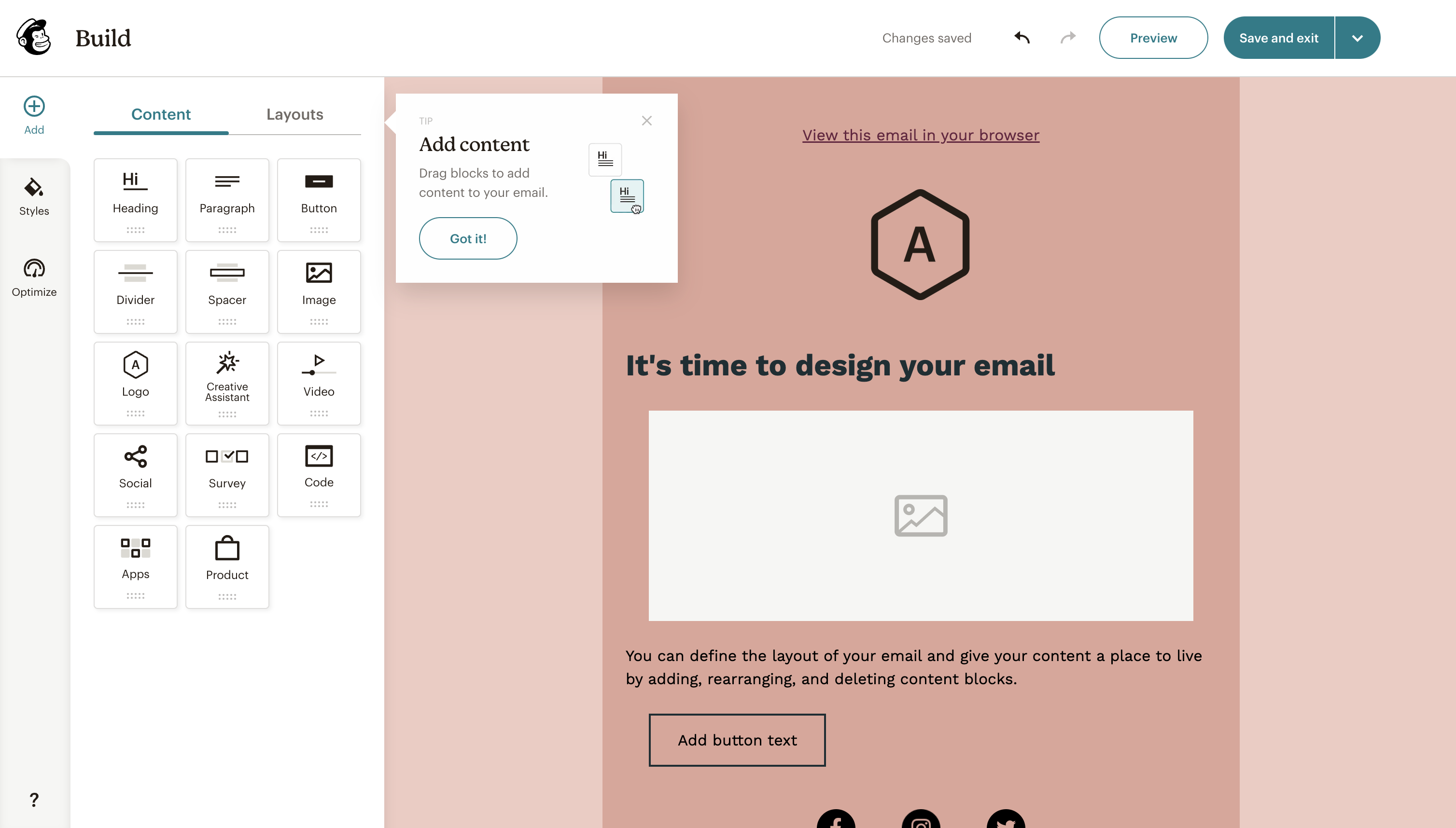
- Recreate Content: Copy the text, images, and links from your Mailchimp emails into the Aiphilia email builder. Ensure that the layout and design elements match the original Mailchimp campaigns.
- Set Up Unsubscribe Links: Use Aiphilia’s built-in unsubscribe merge tags to comply with email regulations.
Step 4: Recreate Automations in Aiphilia #
- Rebuild Automation Workflows: Navigate to Automations > Workflows in Aiphilia to recreate your Mailchimp automations. Set up triggers, actions, and conditions to match the original Mailchimp workflows.
- Use Pre-Built Recipes: Leverage Aiphilia’s workflow recipes if they match any of your existing Mailchimp automations to save time.
Setup Integrations #
Step 1: Reconnect Integrations in Aiphilia #
- Re-establish Email Integrations: Navigate to Settings > Integrations in Aiphilia and reconnect any necessary third-party services (e.g., Zapier, social media platforms).
- Set Up Payment Processing (if applicable): If you were using e-commerce features in Mailchimp, set up payment gateways in Aiphilia under Settings > Payments.
Step 2: Set Up Analytics #
- Enable Tracking: Use Aiphilia’s built-in analytics to monitor the performance of your email campaigns and landing pages.
- Implement Third-Party Analytics (if needed): Re-implement any tracking codes (e.g., Google Analytics) that were used in Mailchimp by navigating to Settings > Tracking.
Final Checks and Team Training #
Step 1: Perform Final Data Validation #
- Cross-Check Data: Verify that all contacts, email campaigns, and automation workflows have been successfully migrated and are functioning correctly in Aiphilia.
- Test Email Campaigns: Ensure that emails are being sent correctly, including all personalization tags and unsubscribe links.
Step 2: Train Team Members #
- Aiphilia Training: Provide training to your team on how to use Aiphilia’s email builder, workflows, and CRM features.
- Leverage Support Resources: Encourage your team to use Aiphilia’s support and documentation for ongoing learning and troubleshooting.
Step 3: Monitor and Optimize #
- Monitor Performance: Regularly check the performance of your campaigns and workflows in Aiphilia, making any necessary adjustments.
- Continuous Improvement: Stay updated with Aiphilia’s new features and updates to continually improve your setup.
Decommissioning Mailchimp #
Step 1: Transition Period #
- Run in Parallel: Consider running both Mailchimp and Aiphilia in parallel for a short period to ensure a smooth transition.
- Gradual Phase-Out: Gradually phase out Mailchimp as you gain confidence in Aiphilia’s capabilities.
Step 2: Cancel Mailchimp Subscription #
- Final Data Backup: Ensure that all necessary data has been securely backed up before canceling your Mailchimp subscription.
- Official Cancellation: Follow Mailchimp’s process to cancel your subscription and terminate any associated services.
Step 3: Post-Migration Review #
- Review Success: Evaluate the success of the migration, documenting any challenges and solutions.
- Ongoing Monitoring: Keep an eye on your Aiphilia setup post-migration to catch and resolve any issues promptly.