Table of Contents
 Doc Summary

You can link the schedules of multiple users, calendars, or groups under one single mobile calendar view.
- Select multiple users – You can view the schedules of multiple users.
- Select multiple calendars – You can view the schedules of multiple calendars.
- Select multiple groups – You can view the schedules of multiple groups.
How To Use Multiple Calendars on Mobile #
Make sure you have your preferred mobile app (Aiphilia, LeadConnector, or Whitelablled) on your device.
| Head over to the calendars section on the bottom bar of the app. Under the calendar, you will now see a dropdown. Tap on the dropdown to open the selector. | 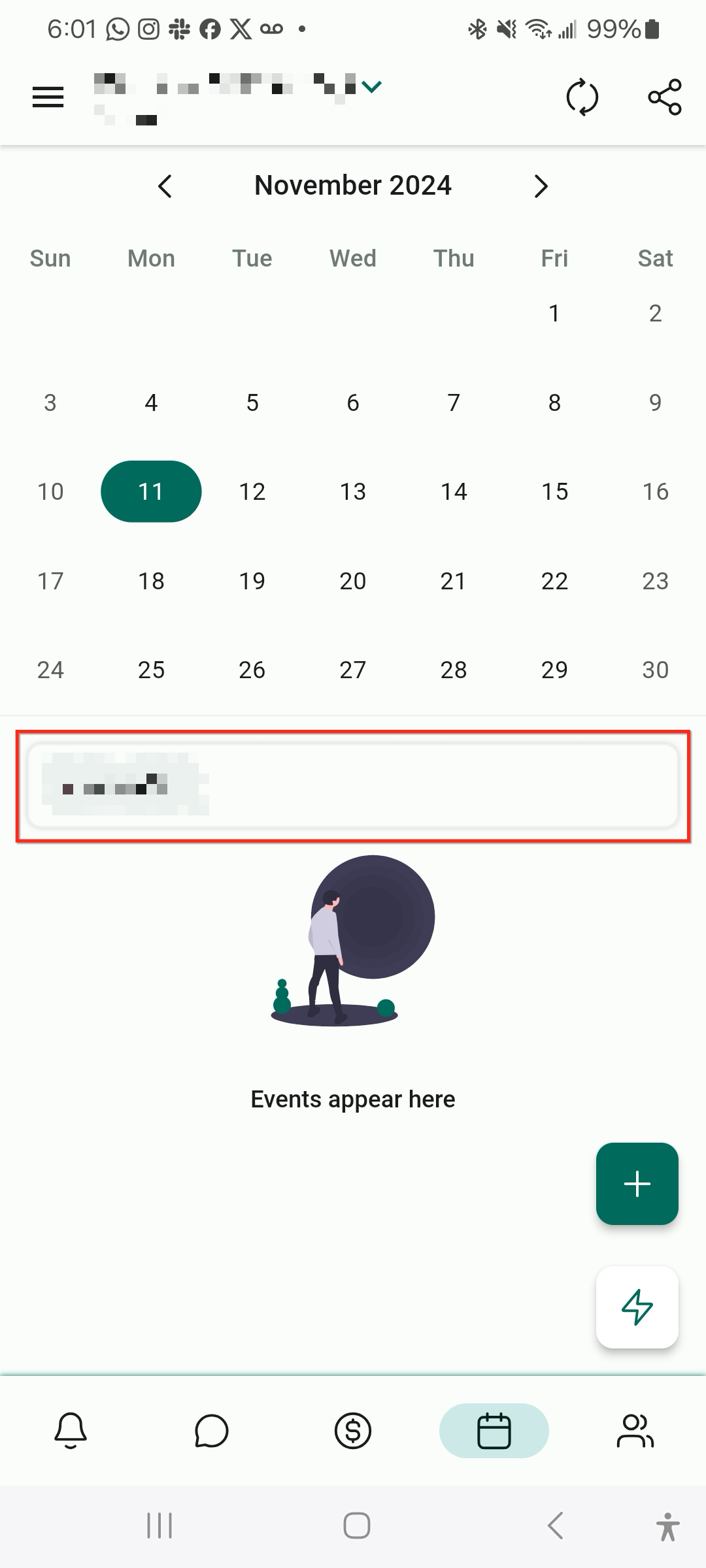 |
| From the selector, you can choose to add multiple users, calendars, or groups. | 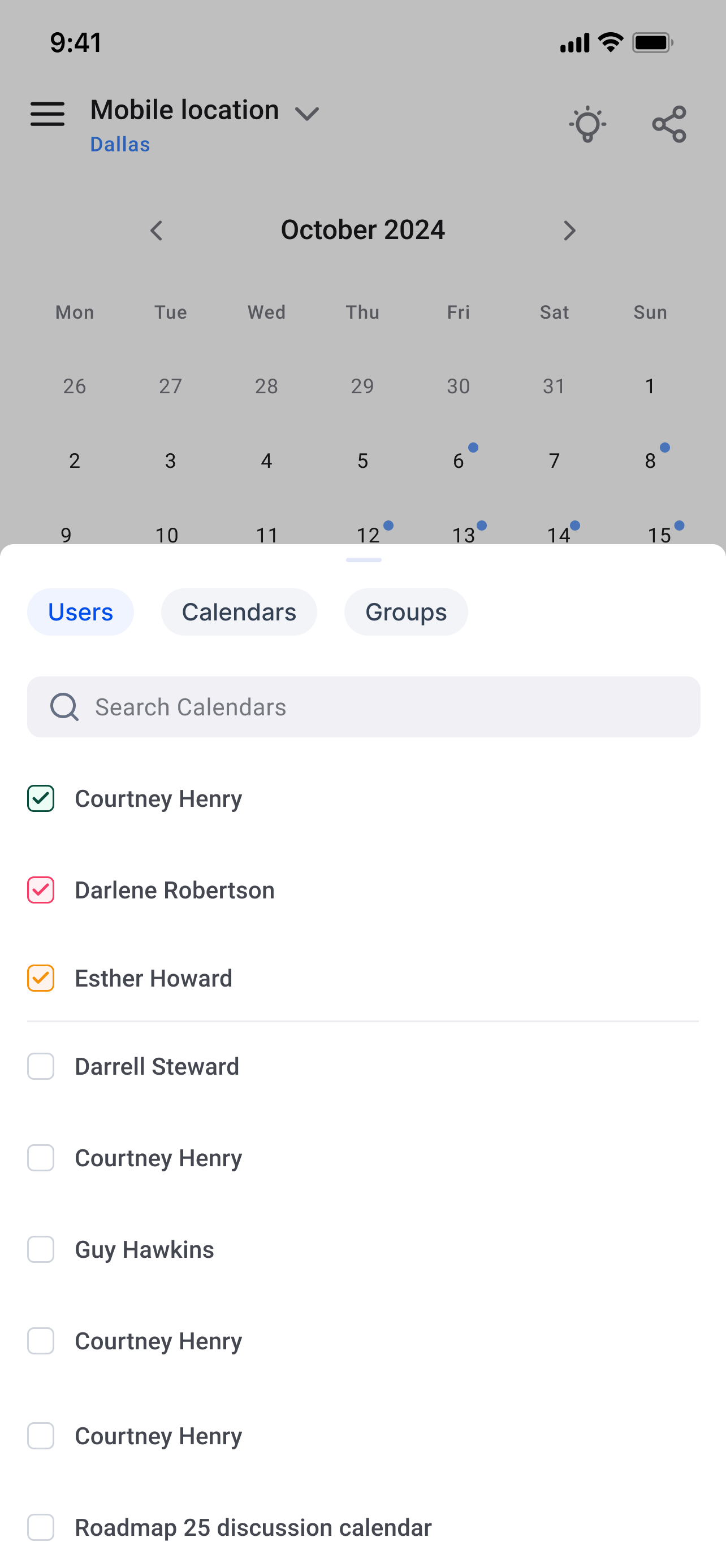 |
| Once you have made your selection, you will then be able to see the schedules of all your selections under the events area. Each selection will have a different colour and that will reflect across the events. | 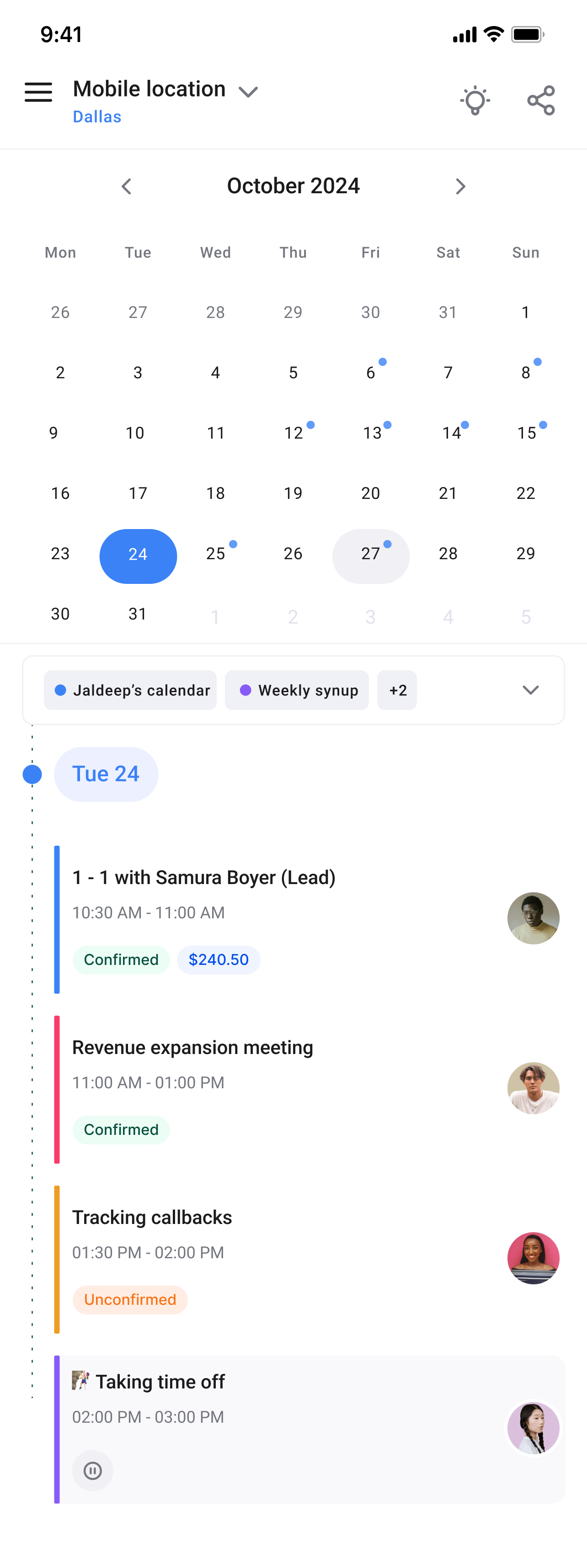 |


