 Doc Summary

This article explains the new section-saving flow, the benefits of Universal, Global, and Template sections, and how to set up and manage them for maximum efficiency.
TABLE OF CONTENTS
- What are Saved Section Templates?
- Key Benefits of Saved Section Templates
- How To Set Up Saved Section Templates
- Step 1: Open the Page Editor
- Step 2:Select a Section
- Step 3: Save the Section
- Step 4: Choose Section Type:
- Step 5: Preview and Label
- Step 6: Finalize Save and Insert Saved Section
- Best Practices for Section Management
- Frequently Asked Questions
- Related Articles
What are Saved Section Templates? #
Saved Section Templates are a powerful enhancement in Aiphilia that allow users to create, save, and reuse content sections across multiple assets, such as Funnels, Websites, Webinars, and E-Commerce Stores. With this update, you can choose between three types of saved sections: Universal (syncs everywhere), Global (syncs within a single asset), and Template (static, reusable, and non-syncing).
- Section Templates: Saves as a copy, which can be used anywhere as a template.
- Global Sections: Saves at the funnel level. Any changes in one instance will sync across this funnel only.
- Universal Sections: Saves at the account level. Any changes in one instance will sync across all instances, account-wide.
This system ensures design consistency, saves time, and reduces confusion about how content updates propagate.
Difference between Universal and Global Sections:

Universal Sections update automatically across every instance in the account across Funnels, Websites, Webinars, and E-Commerce Store.

Global Sections update only within the current funnel/website.
Key Benefits of Saved Section Templates #
Saved Section Templates offer several advantages that help users manage content more efficiently and maintain brand consistency:
- Centralized Updates: Universal Sections automatically sync changes across all instances in Funnels, Websites, Webinars, and E-Commerce Stores.
- Flexible Reuse: Choose between Universal, Global, or Template sections based on your needs for syncing or static content.
- Visual Selection: Automated screenshots and clear labels make it easy to preview and select saved sections.
- Efficient Cloning: Cloned sections and snapshots get unique IDs, so edits to copies won’t affect originals.
- Improved Performance: Enhanced backend architecture ensures faster syncing, better reliability, and secure template management.
- Reduced Confusion: Clear section types and visual cues help users understand how edits will impact their content.
- No Personal Data Stored: Only layout information is saved, protecting user privacy.
How To Set Up Saved Section Templates #
Proper setup of Saved Section Templates ensures your content is reusable and updates as intended. Follow these steps to save and use sections effectively:
Step 1: Open the Page Editor #
Navigate to your Funnel, Website, Webinar, or E-Commerce Store in Aiphilia and open the page editor.

Step 2:Select a Section #
Choose the section you want to save for reuse.
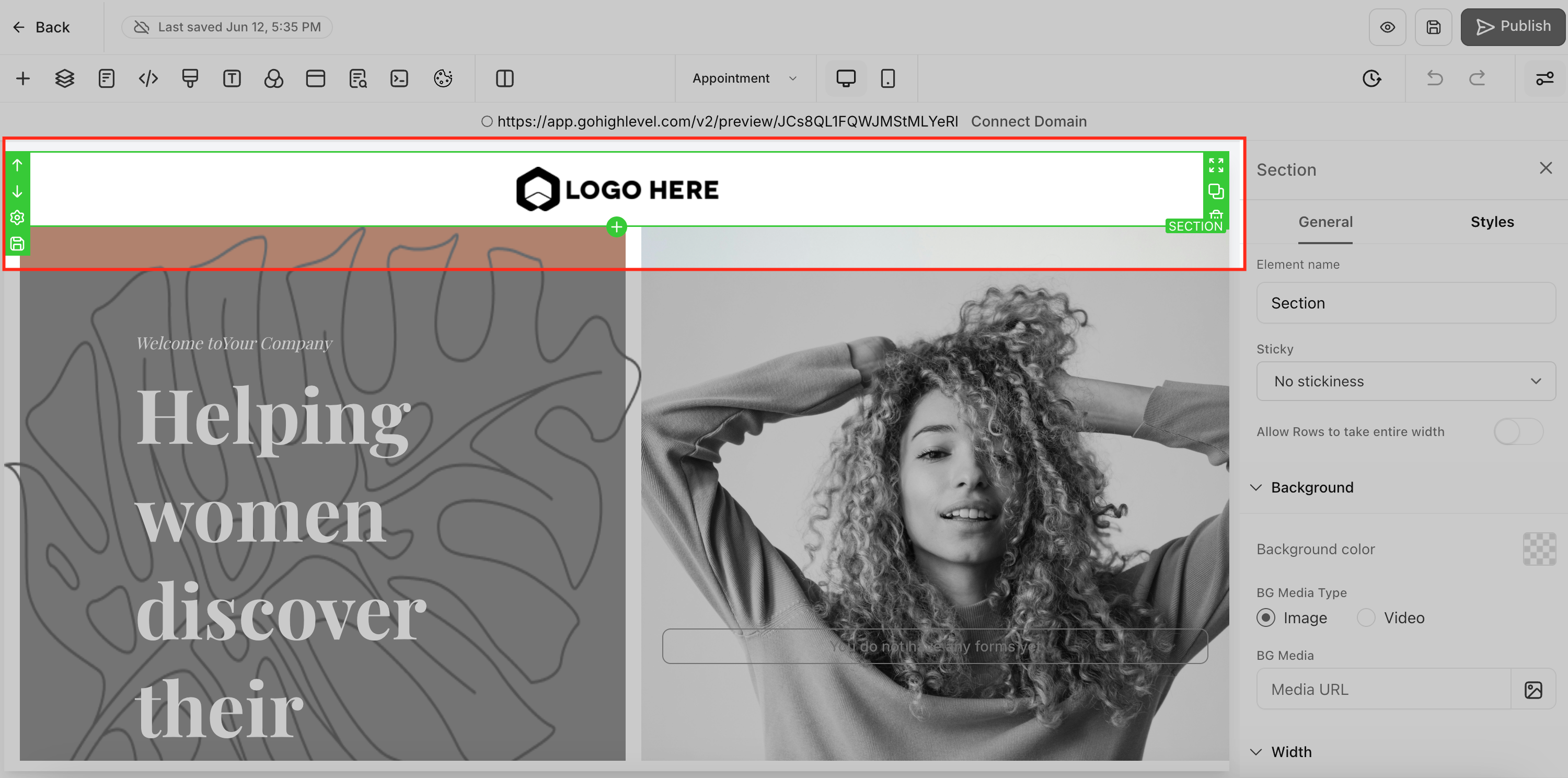
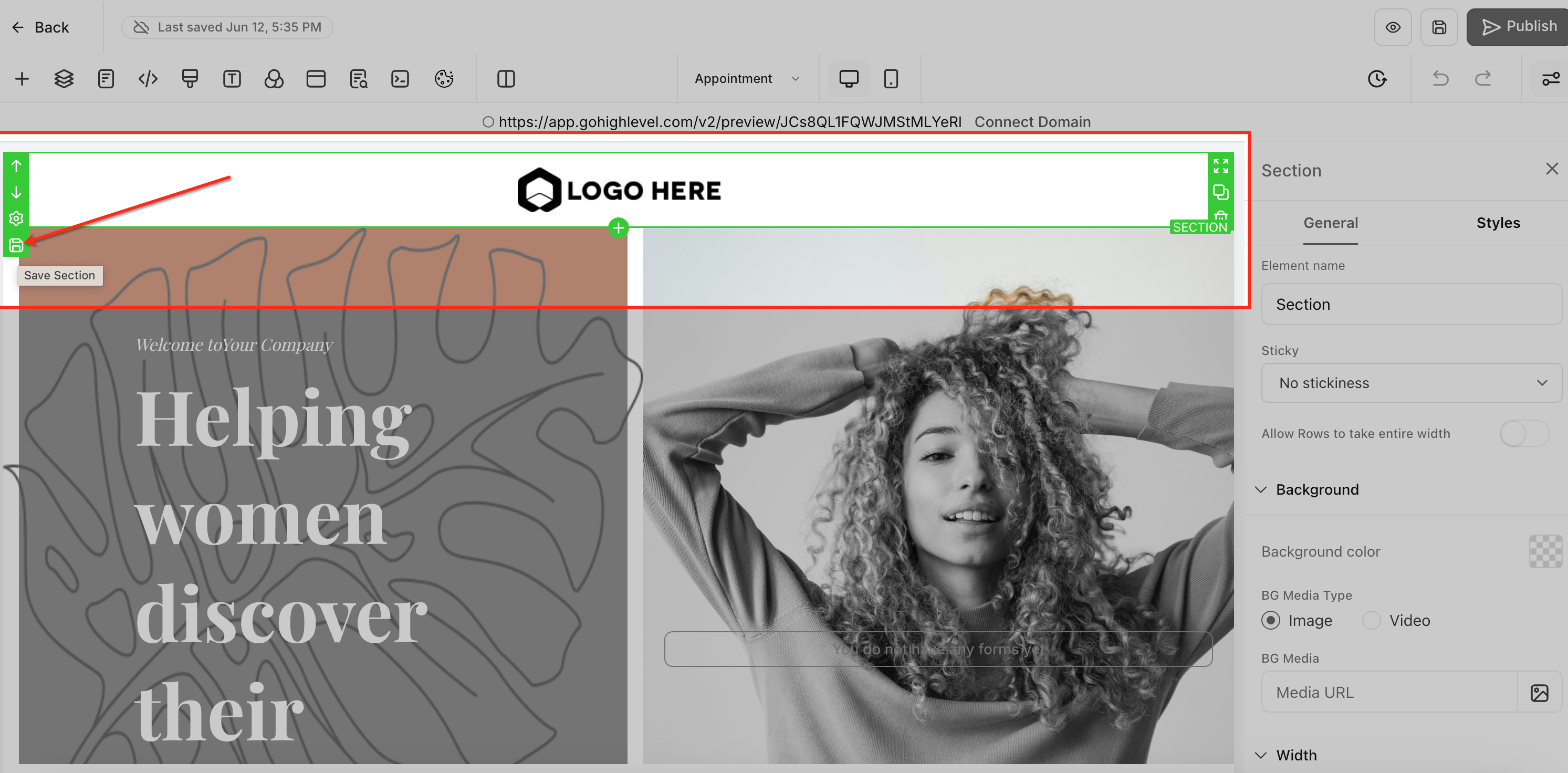
Step 3: Save the Section #
Click the “Save Section” option. A unified save modal will appear.
Step 4: Choose Section Type: #
- Universal: Syncs updates across all assets in your account.
- Global: Syncs updates only within the current funnel or website.
- Template: Creates a static, reusable section that does not sync when edited elsewhere.
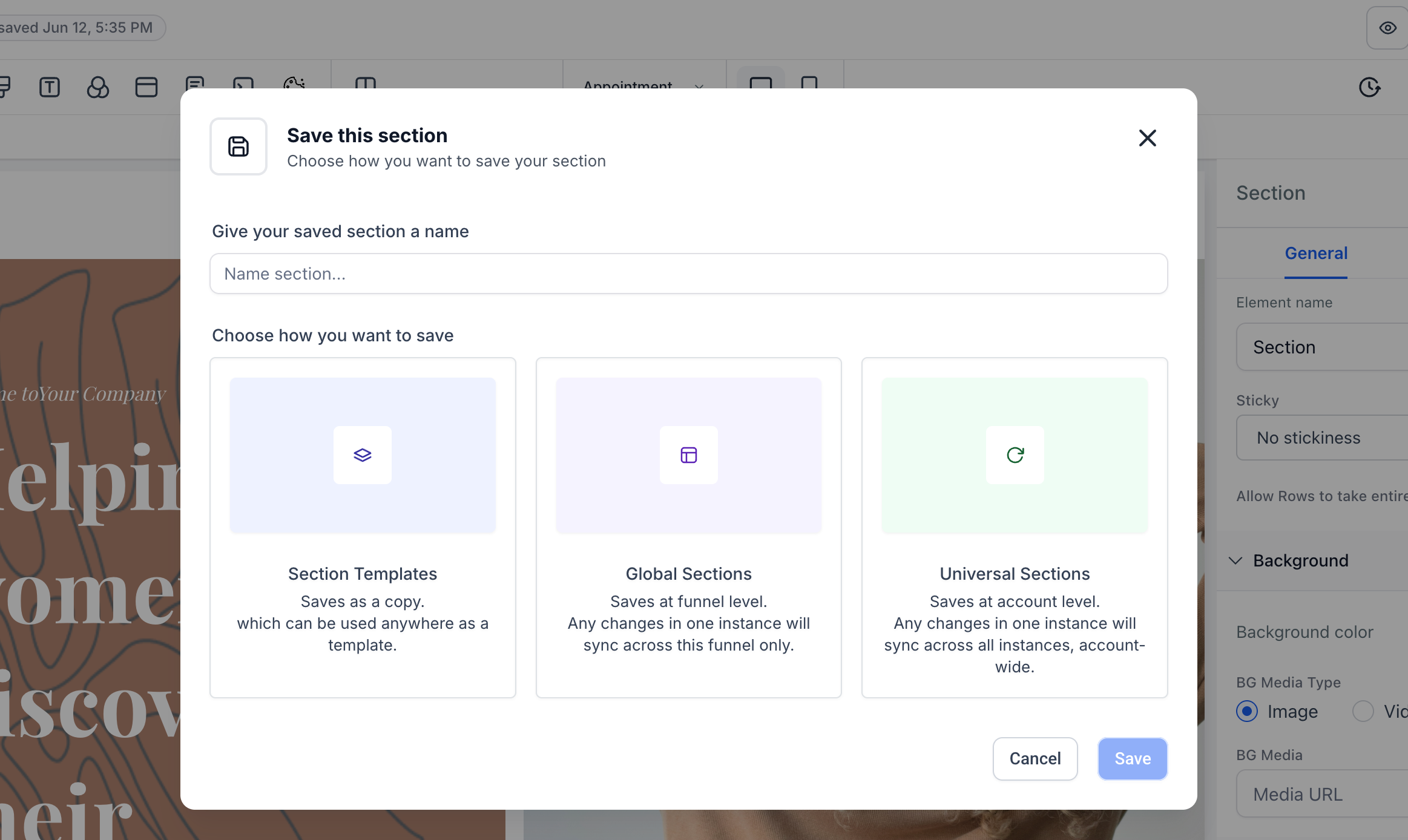
Note: Name your section and choose how you would like to save the section, as a Section Template or Global Section or a Universal Section. Once saved once a section is saved as Universal, Global, or Template, its type cannot be changed.
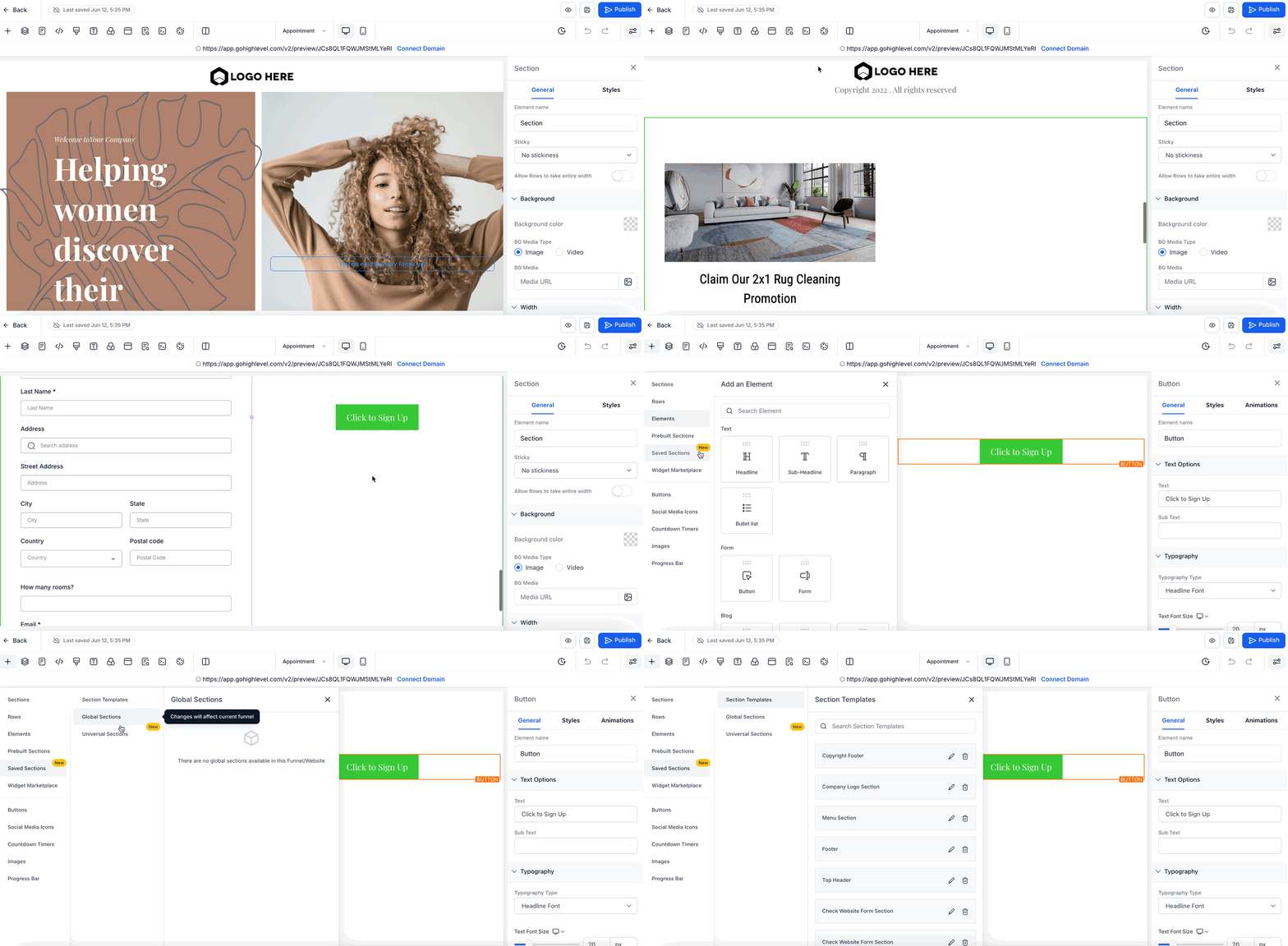
Step 6: Finalize Save and Insert Saved Section #
When editing another page, use the “Add Section” option to browse and insert your saved Universal, Global, or Template sections.
Best Practices for Section Management #
- Plan your section type before saving, as it cannot be changed later.
- Use Universal Sections for content that must stay consistent everywhere (e.g., headers, footers).
- Use Global Sections for content unique to a specific funnel or website.
- Use Templates for reusable blocks that may need customization in each instance.
- To change a section’s type, clone it and save the clone under the desired type.
Frequently Asked Questions #
Q: Can I change the type of a section after saving it?
No, once a section is saved as Universal, Global, or Template, its type cannot be changed. Clone the section and save the clone under a different type if needed.
Q: Will edits to a Universal Section update everywhere?
Yes, any changes made to a Universal Section will automatically sync across all instances in Funnels, Websites, Webinars, Blogs, and E-Commerce Stores.
Q: What happens if I clone a funnel or section?
Cloned sections receive a unique ID and do not sync with the original, allowing you to edit them independently.
Q: Are screenshots available for all saved sections?
Automated screenshots are generated for Universal and Global section templates, making it easier to browse and select templates.
Q: What’s the difference between Global and Universal Sections?
Universal Sections sync across all assets in your account, while Global Sections sync only within the funnel or website where they were created.
Q: How do I reuse a section in a different funnel or website?
Save the section as Universal or Template, then insert it into any funnel, website, blog, or store as needed.
Related Articles #
- How to Use Global Sections in Aiphilia
- Building and Saving Funnel Templates
- How to Clone Funnels and Websites
- Managing Website Sections and Blocks
- E-Commerce Store Builder Overview
- Best Practices for Website Design in Aiphilia


