Table of Contents
 Doc Summary

TABLE OF CONTENTS
- Overview
- What’s New
- Key Improvements
- How to Use It
- Supported Action Types
- During the Call
- After the Call
Overview #
The Action Builder for Voice AI has been completely redesigned to offer a cleaner, faster, and more intuitive experience. This update introduces a card-based layout, tabbed structure, and streamlined workflows, making it significantly easier to create, manage, and review what your agent does both during and after a call.
To enable this feature: Go to Settings > Labs > Enable "Voice AI - Separate During and Post Call Actions"
What’s New #
- Card-Based Interface
Actions now appear as individual cards. You can easily scan, sort, and organize actions with improved visual clarity.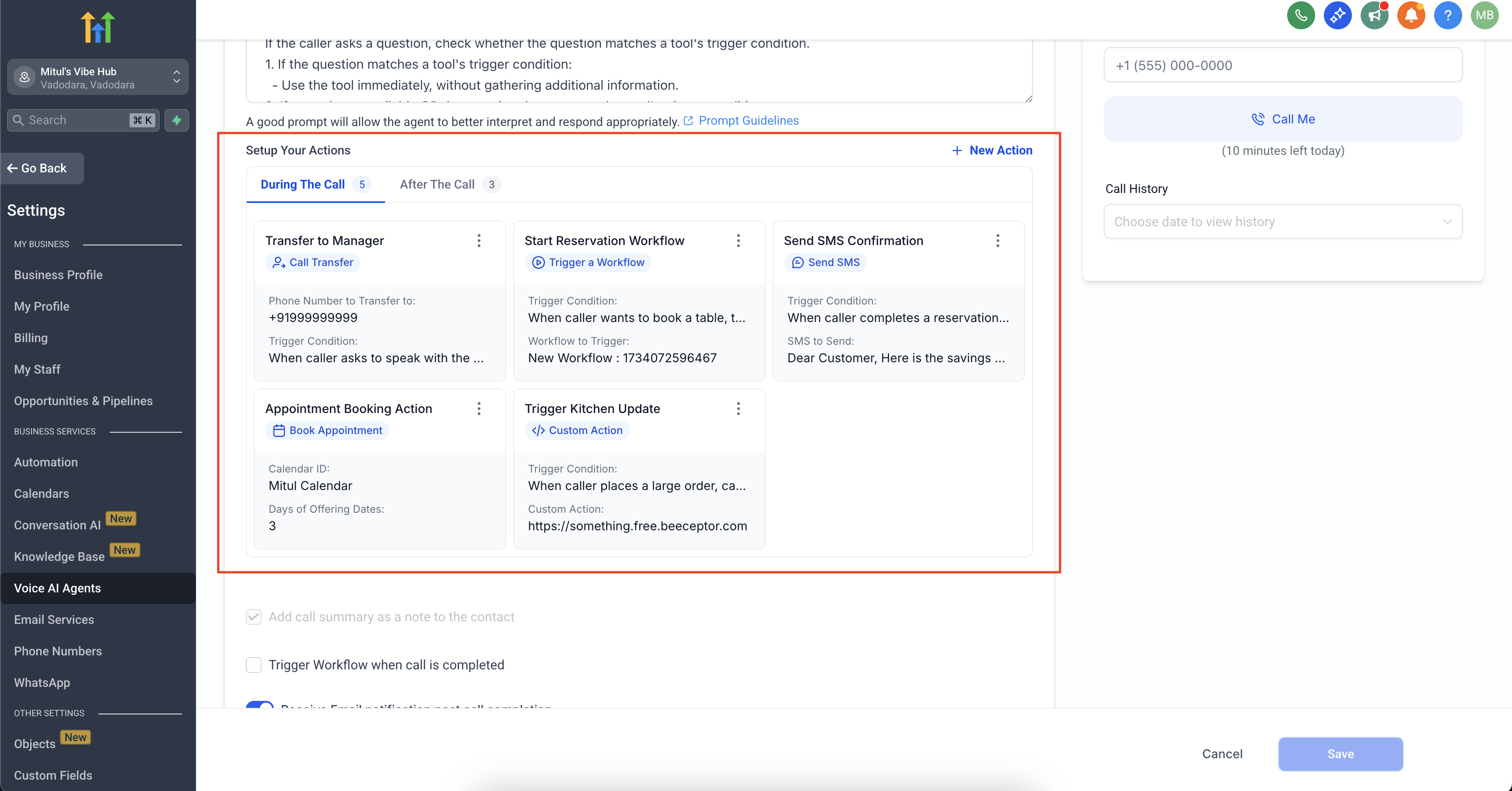
- Tabbed Layout
The actions are now split into During the Call and After the Call sections. Each tab displays the total number of actions configured. - Streamlined Creation Flow
A bold and easy-to-access “New Action” button encourages quick and structured action creation.
- Individual Action Modals
Every action type opens in a dedicated modal, eliminating the need to switch tabs or scroll through long forms. - Quick Delete Option
You can now delete actions directly from the action card menu, no need to open the editor.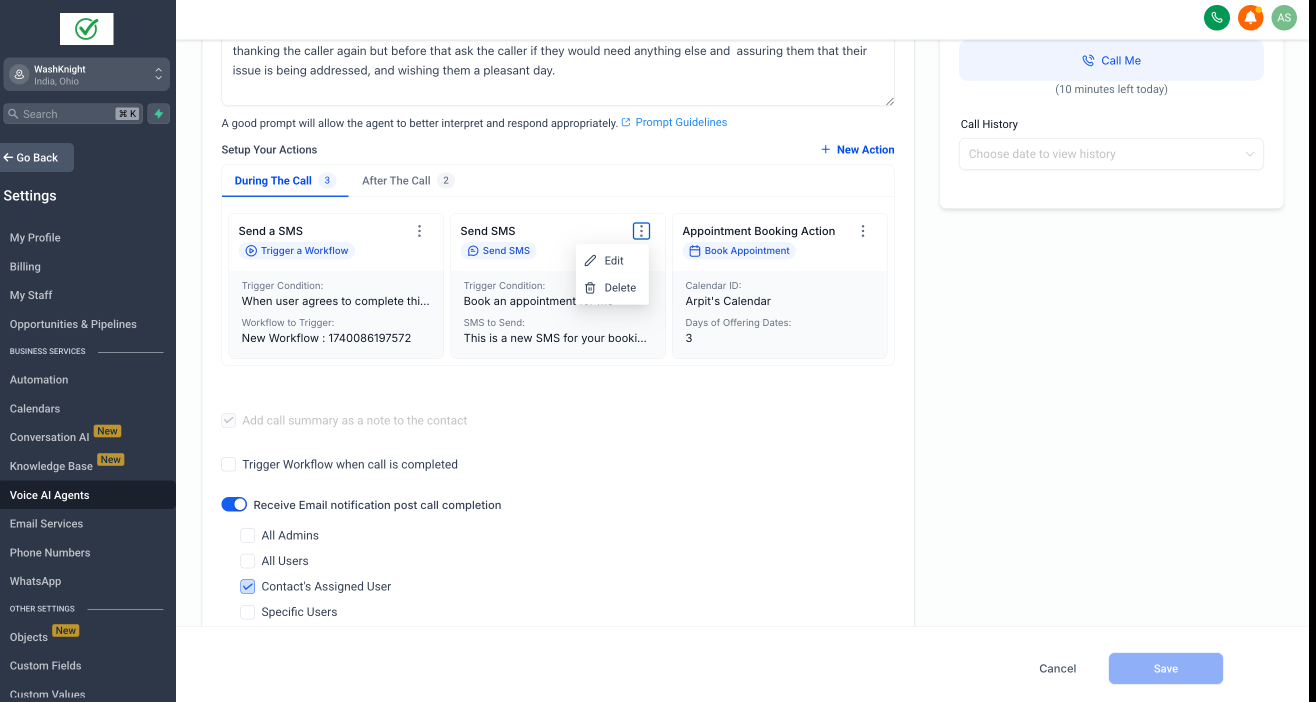
Key Improvements #
- Improved Visual Hierarchy
Action types are now easier to distinguish thanks to better labels and grouped layouts. - Simplified Editing & Deletion
Edit or remove actions in fewer clicks — right from the action card. - Built-In Constraints & Smart Guidance
- Visual counters show you how many of each action type you’re using.
- Tooltips and inline guidance prevent misconfiguration:
- Max 15 total actions during a call
- Only 1 appointment booking action allowed
- Up to 25 contact field update actions after a call
How to Use? #
- Open the Voice AI agent you want to edit, and then click on the agent goals.
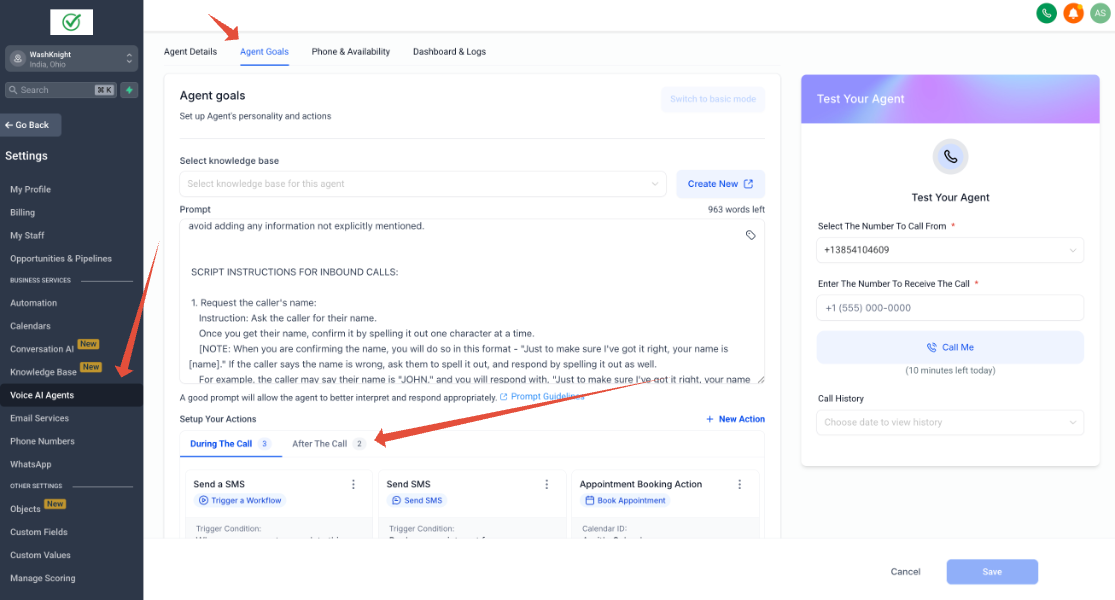
- Use the “New Action” button to begin.
- Choose the type of action you want to configure, for example, call transfer.
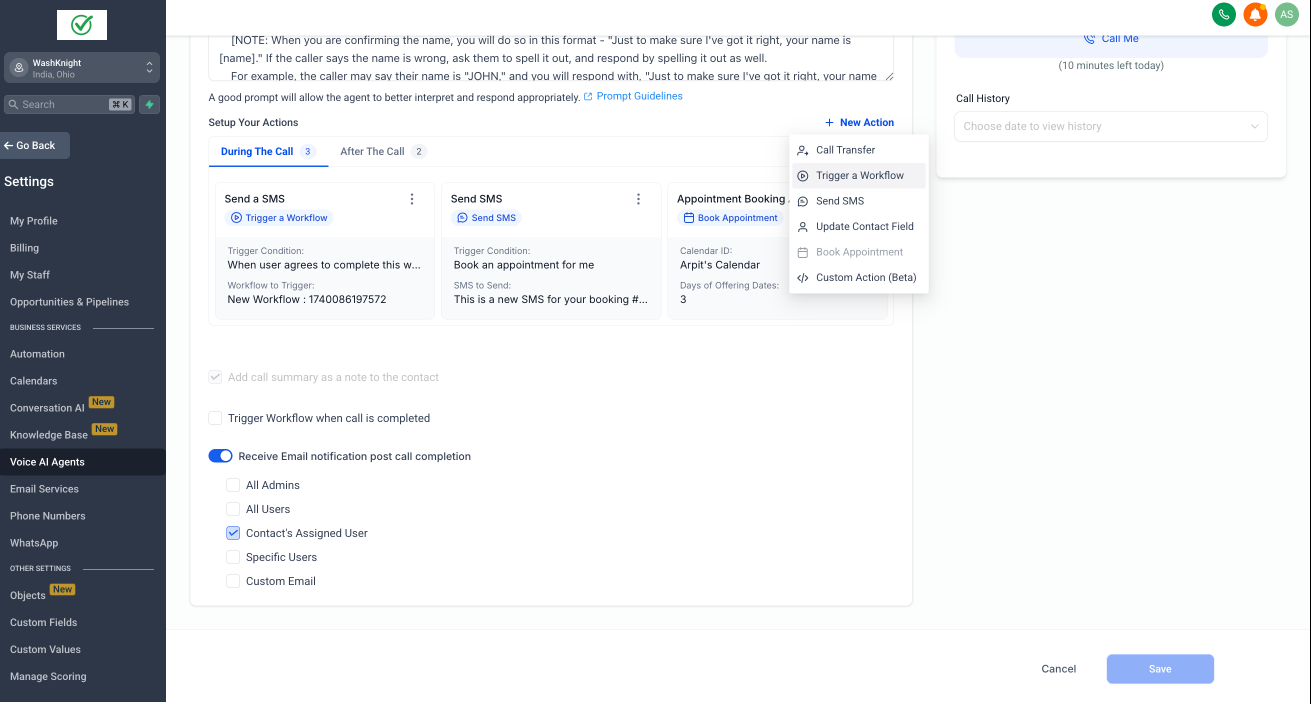
- A focused modal will appear — fill in the required details.
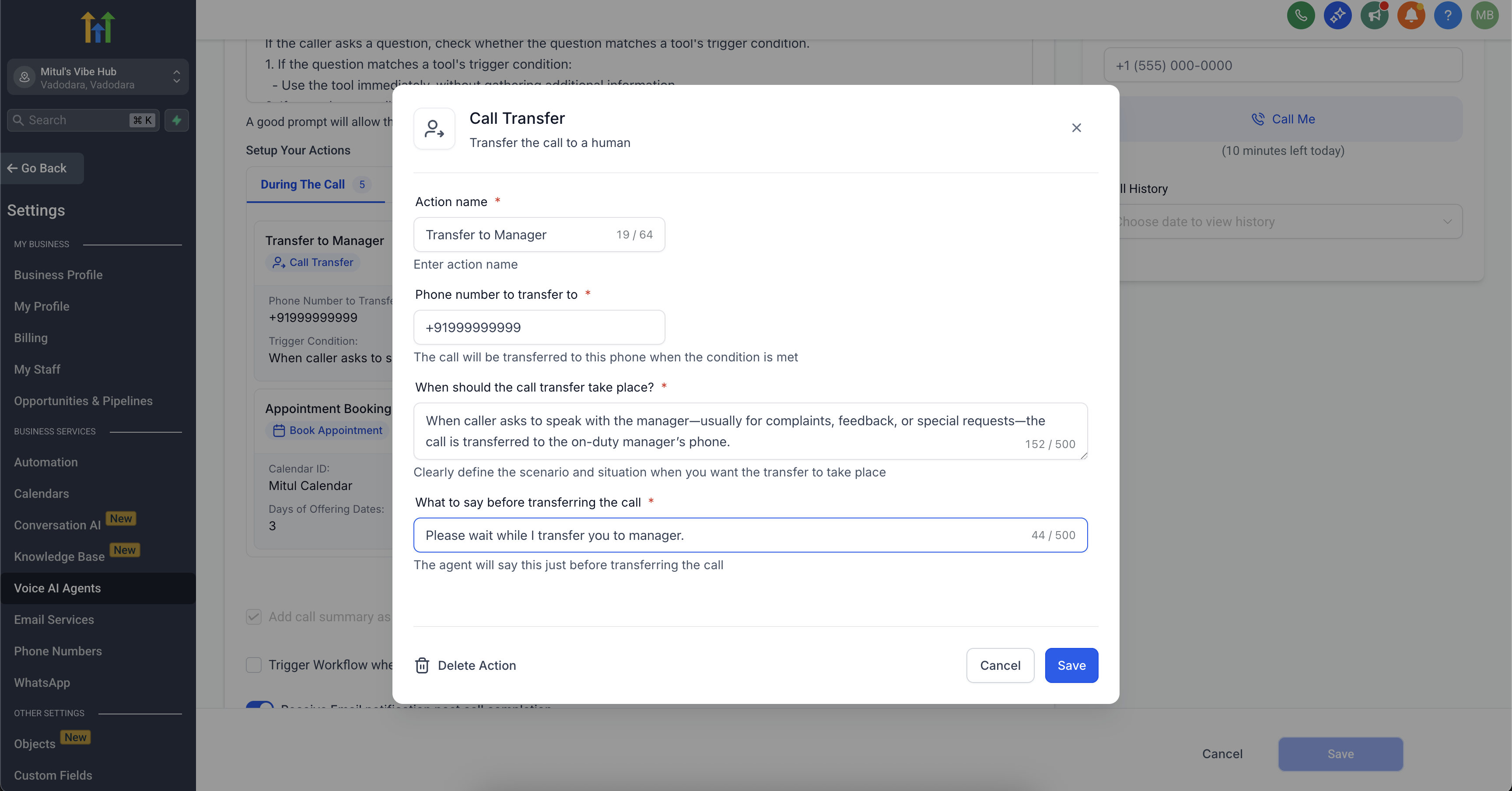
- Save. Your new action will appear as a card under the appropriate tab.
Supported Action Types #
During the Call #
- Call Transfer
- Trigger Workflow
- Send SMS
- Book Appointment
- Custom Actions (Beta)
After the Call #
- Update Contact Fields


